I don’t know what work is still unfinished.
How to Track Unfinished Work Across Jobs
A crew has visited the job, but that does not mean every item is finished. Review the remaining tasks before closing out the job or booking a return visit.
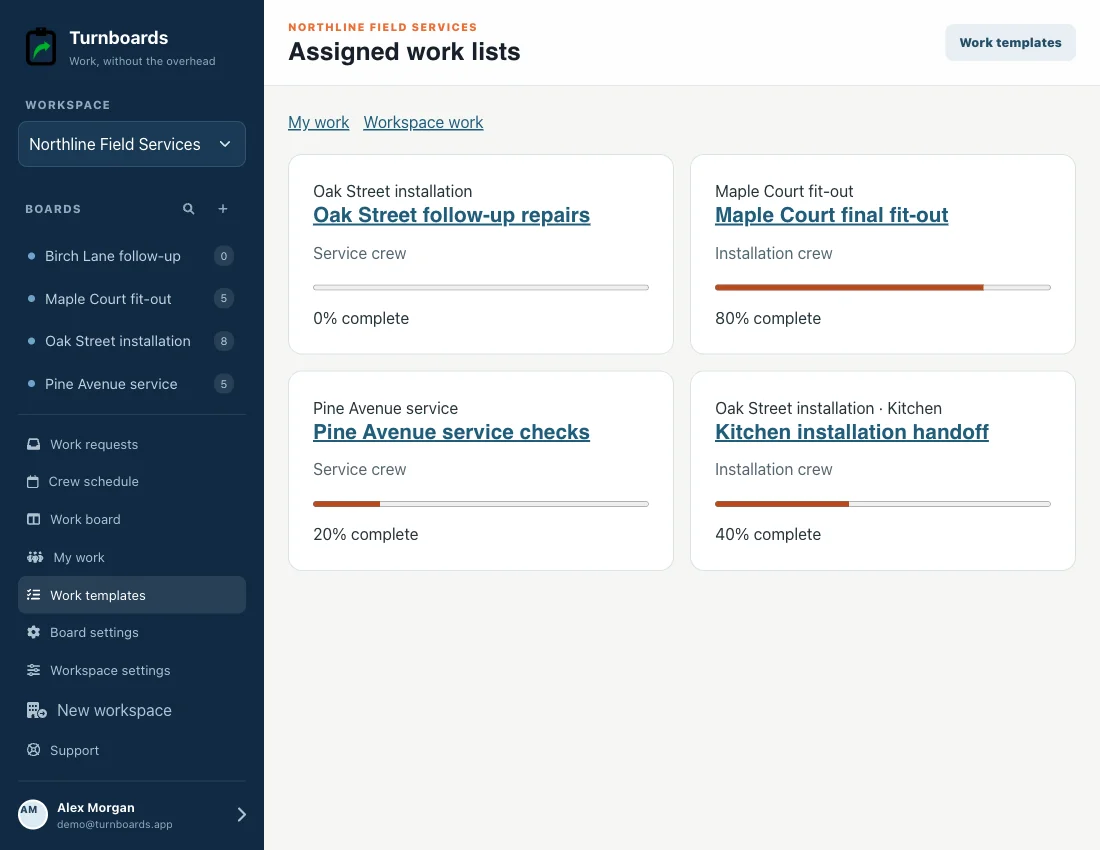
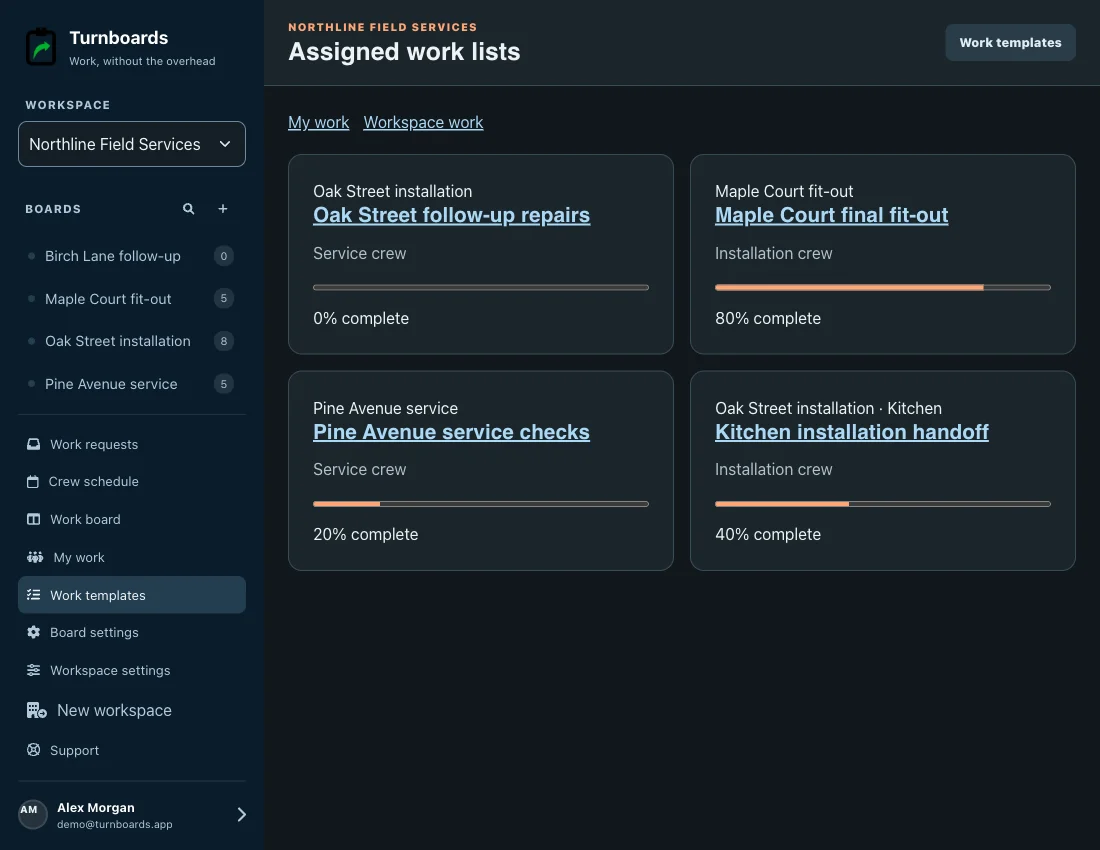
Turnboards shows progress on each shared work list and lets you open the actual tasks on its job board. Use Workspace work for a list-by-list review across your active jobs.
Create your workspace and start with one job.
Prefer the mobile app?


A practical example
A completed visit is not a completed checklist
The Installation crew finishes part of the Oak Street handoff. Review the remaining items before deciding whether the next visit needs the same people.
- Workspace review
- Open Workspace work and compare each job’s list progress. Each assigned copy has its own progress.
- Task review
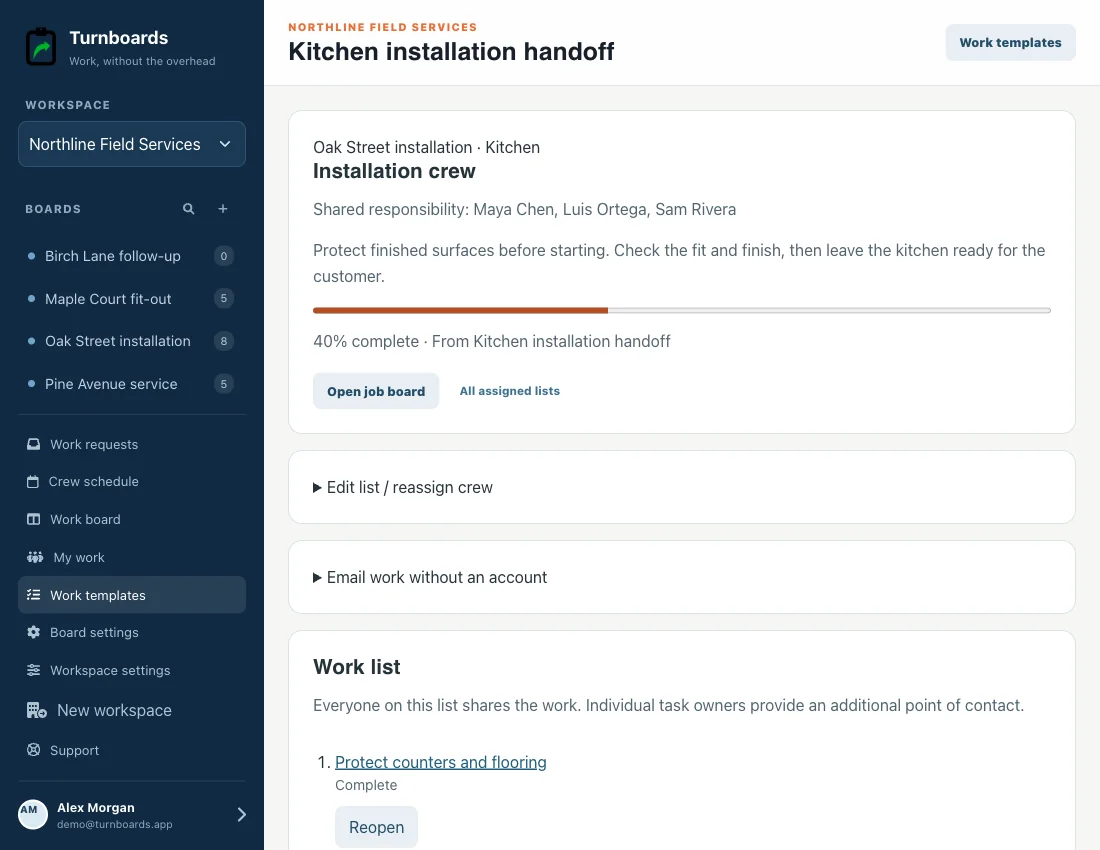
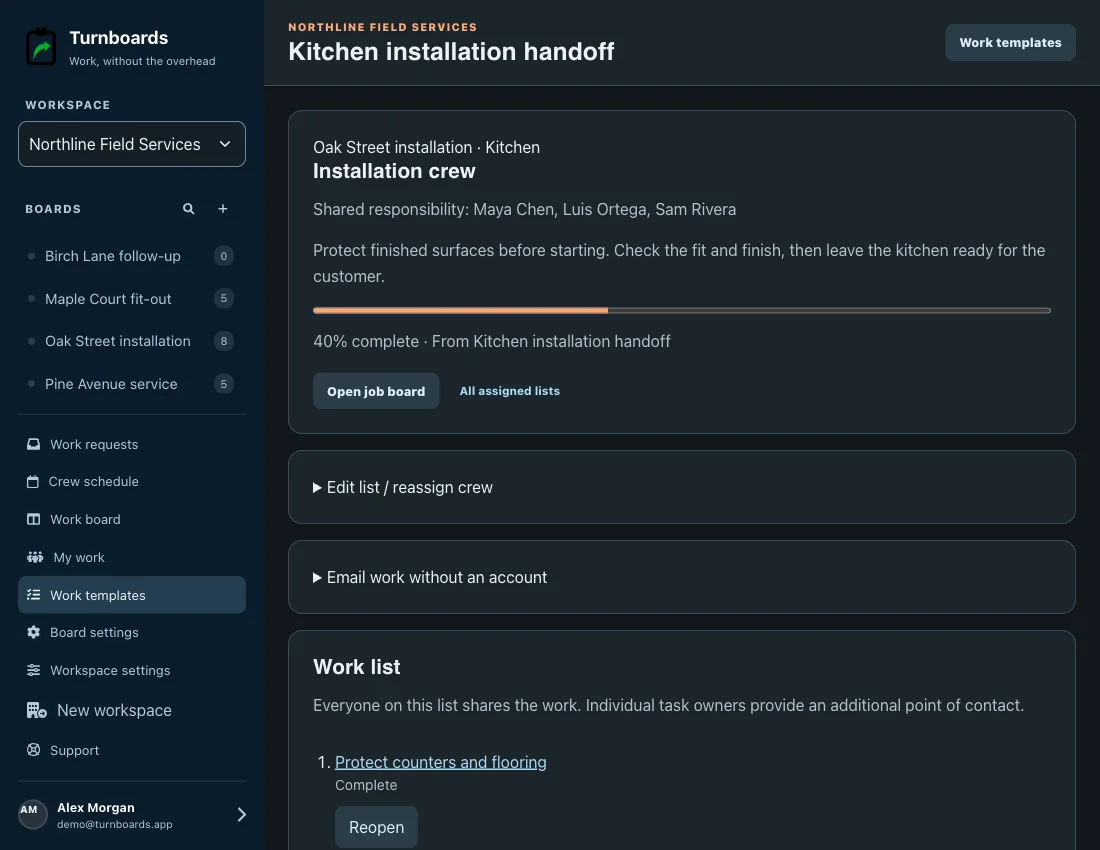
- Open the Oak Street list to see which checks remain, their status, and any individual owners.
- Next action
- Update the work assignment if needed and create a follow-up booking. Do not mark work finished just because a visit ended.
Start with one job
Create your account and a job board. Add or assign a work list, then use Workspace work to review progress across your jobs.
Put it into practice
A workflow your team can follow
Keep each job’s work separate
Use a distinct work list for each job and crew assignment. A reusable template supplies the starting tasks, but completion belongs to the assigned copy.
Review Workspace work, then open the list
Use the existing work-list view to review jobs and progress. Open a list to inspect remaining tasks and the people who share responsibility; open its board for the wider job context.
Update completion where the work happens
Assigned crews share responsibility. Signed-in mobile members can complete supported work offline and sync later; guest recipients can complete their assigned list online.
Plan the next visit separately
Choose the next crew and date when follow-up is needed. Rescheduling or canceling a booking does not complete tasks or erase the work list.
What to expect
This is a practical review routine using existing work lists and boards, not an automatic cross-job exception dashboard. Progress reflects recorded task completion; offline changes appear to others after sync.
Questions before you start
Does a finished booking complete the work?
No. Scheduling and task completion are independent. The crew needs to record which tasks are actually complete.
Does everyone on a crew share the work?
Yes. The assigned roster shares responsibility for the list. Individual task owners can add a point of accountability without removing other assigned crew members.
Why might progress differ from what a crew member sees?
A mobile member may have unsynced offline changes or an older local copy. Refresh through the existing sync flow and check last-sync status before planning from the latest progress.
Connect the next part of the job
Put the workflow to work
Make the next job easier to hand off.
Create your account and a job board. Add or assign a work list, then use Workspace work to review progress across your jobs.