

A practical crew-scheduling guide

Plan the week before the crew heads out.

A useful schedule answers three questions: who is going, where they need to be, and which work comes next. Start with those decisions, then keep the plan close to the job.

No credit card. Create your first board in minutes.

Prefer the mobile app?
Turnboards · Crew scheduleExample workspace
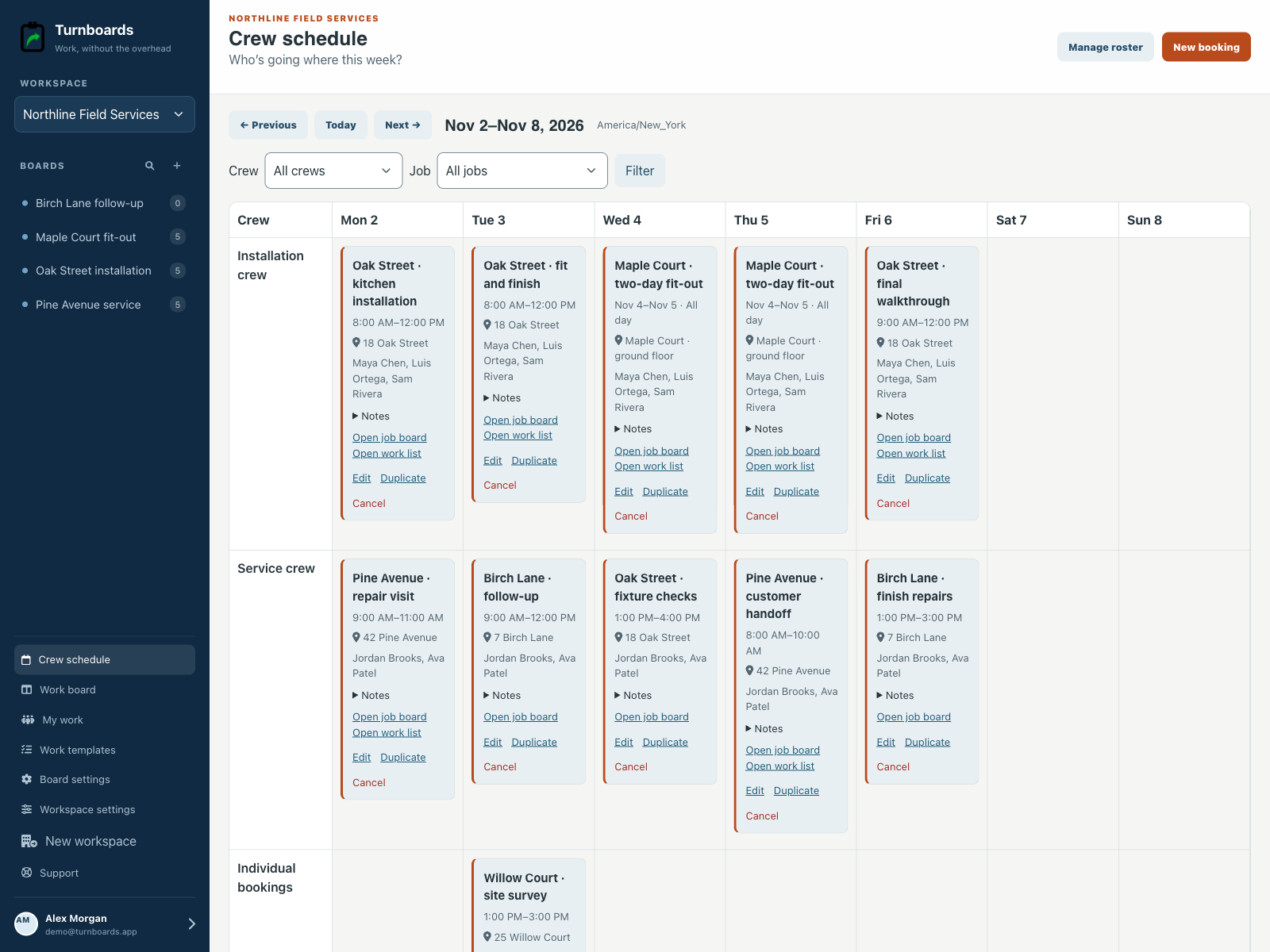
Turnboards weekly crew planner showing Installation crew and Service crew booked onto jobs, with a separate individual site survey
One workspace. A week of jobs. The people responsible for each visit.
1

Start with the people you actually schedule

Open Crew schedule, confirm the workspace timezone, and add people in Manage roster. Names are enough to start; link a Turnboards member when that person needs a personal mobile schedule.

Create reusable crews for the people who normally work together. You can still adjust participants for an individual booking.
2

Book a visit onto the week

Choose the job or visit title, crew, location, and dates. Use an all-day booking when the day matters most, or start and end times for several visits in one day.

For example: Installation crew at Oak Street on Monday, 8 a.m.–noon. A board link is optional while the job is still taking shape.

3

Review who is booked in two places

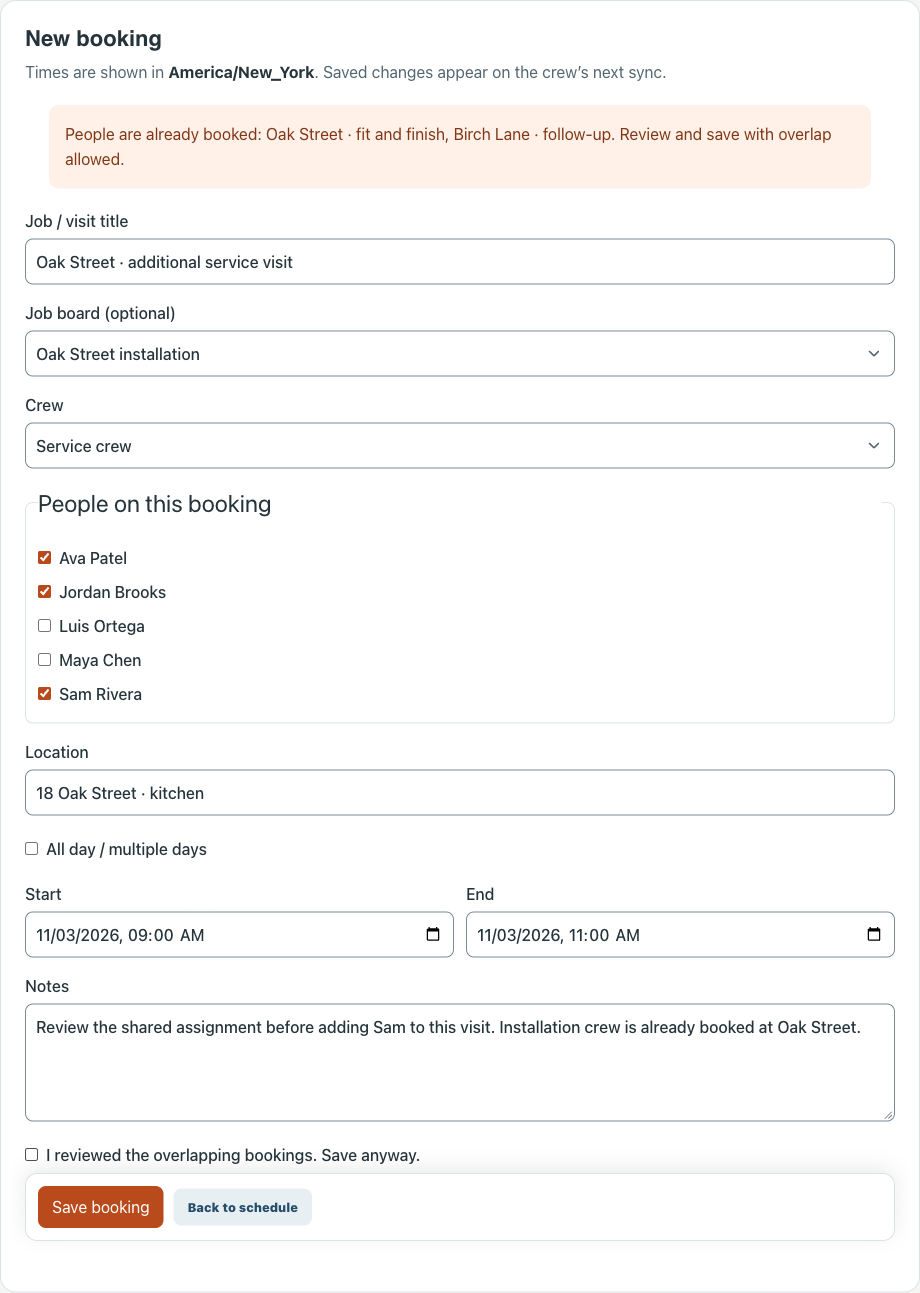
Read the overlap warning before saving a conflicting visit. Move the time, change the people, or explicitly allow an overlap you have reviewed.

Check the person’s other assignments, including work on another crew. Back-to-back visits can share an end and start time; allow for travel and setup in your plan.

4

Put the job’s work one click away

Link the booking to its Turnboards board. Keep the checklist, assignments, notes, and work status there, so the crew can move from the visit to the next action.

Booking dates and participants do not automatically change task due dates or task assignments. Review each when the job plan changes.

5

Make the handoff part of the routine

Save changes on the web, then have signed-in crew members refresh their mobile schedule before heading out. My schedule shows bookings linked to their roster entry.

Offline, the app shows the last successfully synced plan. Check the last-sync time and agree on how the team will communicate urgent changes; this version does not send automatic booking notifications.

Make room for the real week

A warning is a chance to adjust the plan.

If the same person is booked across two visits, review the overlap before saving. A deliberate exception stays your decision.

This is a scheduling check, not an automatic capacity or travel-time calculation.

Actual booking form showing an overlap warning and the people selected for the visit
Example booking form. Overlaps require review before saving.

A few useful details

Before you plan the week.

What if the crew changes halfway through the week?

Edit the people on the affected booking. Changing a crew’s reusable roster applies to new bookings; existing bookings keep their own participants.

How should I handle a job that takes several days?

Use an inclusive all-day date range when the crew is reserved for those days, or create timed visits when only part of each day is needed.

Should I duplicate a booking for the next visit?

You can duplicate a booking and review its dates, crew, and details before saving. Duplication is manual; it does not create a recurring schedule.

Start with the next job

A clearer week starts with one booking.

Set your workspace timezone, add the people you schedule, and put the first visit on the calendar.

No credit card. Create your first board in minutes.

Prefer the mobile app?