Your first board, step by step
From scattered tasks to one clear board
Create a workspace, add the next few tasks, and give each one an owner. Start in your browser. You can add the mobile app later for work away from your desk.
Before you begin
- Create a free Turnboards account in your browser—nothing to download.
- Choose a workspace name for your team, business or personal projects.
- Create at least one board for the project, job site, route, department, or goal you want to organize.
- Add the mobile app later if you need offline access at a job site, shop, or route.


Part 1
Choose your organization.
A workspace keeps related boards and people together. Use a separate workspace for your business, personal projects or another team.
Open the web dashboard.
Sign in to Turnboards in your browser. Your workspace and boards are available in the sidebar.
Create a workspace.
Choose Create workspace on an empty account, or New workspace in the sidebar. Give it a name you recognize.
Choose a starting workflow.
Select General for a simple task list, or an industry workflow with stages suited to your work.
Switch workspaces when needed.
Use the Workspace selector in the sidebar to choose another workspace you belong to.
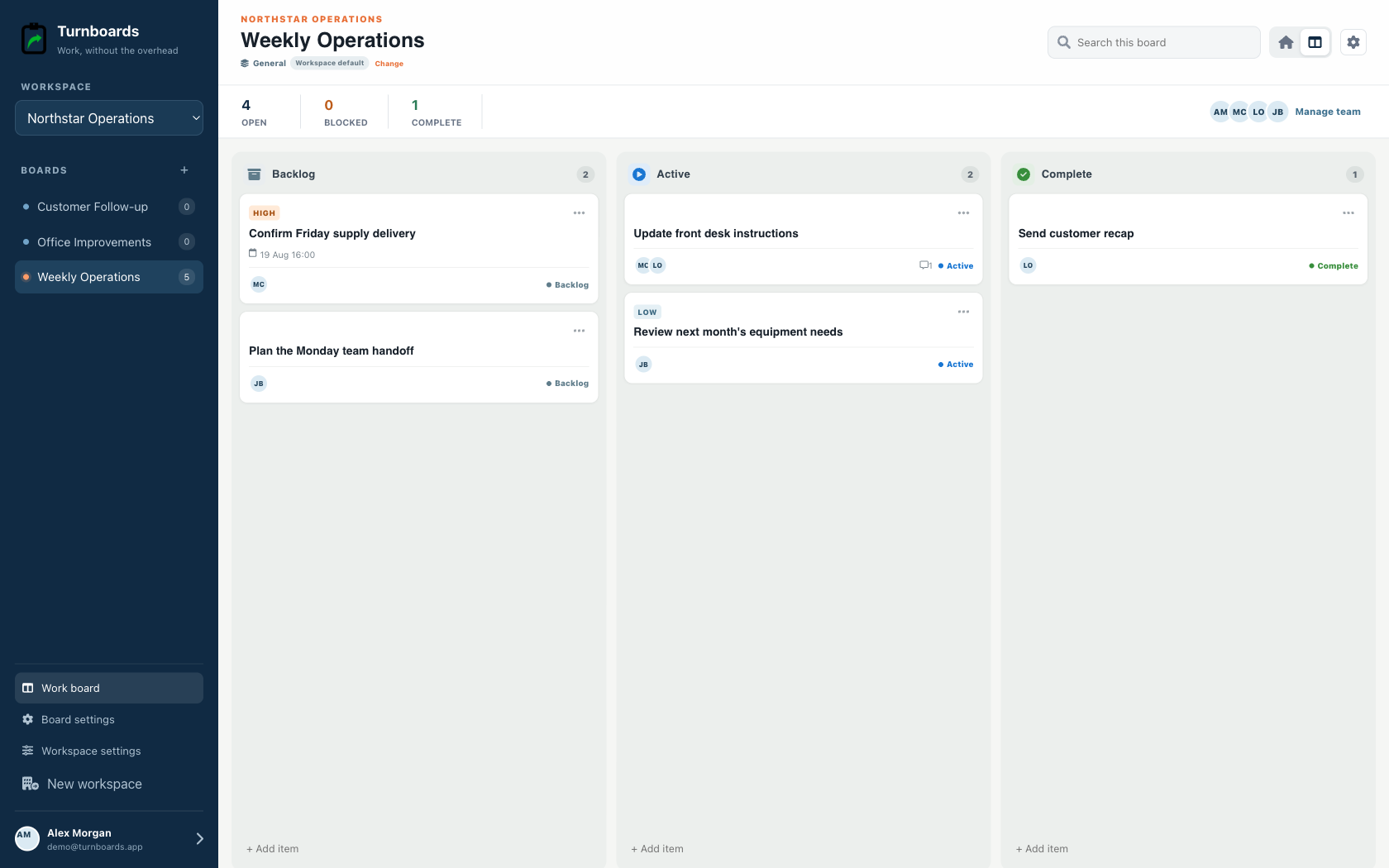
Workspaces and boards stay visible in the web sidebar
Part 2
Choose or create a board.
Boards are containers for related work. Make a board for a job, project, customer, route, department, home goal, or anything else that deserves its own list.
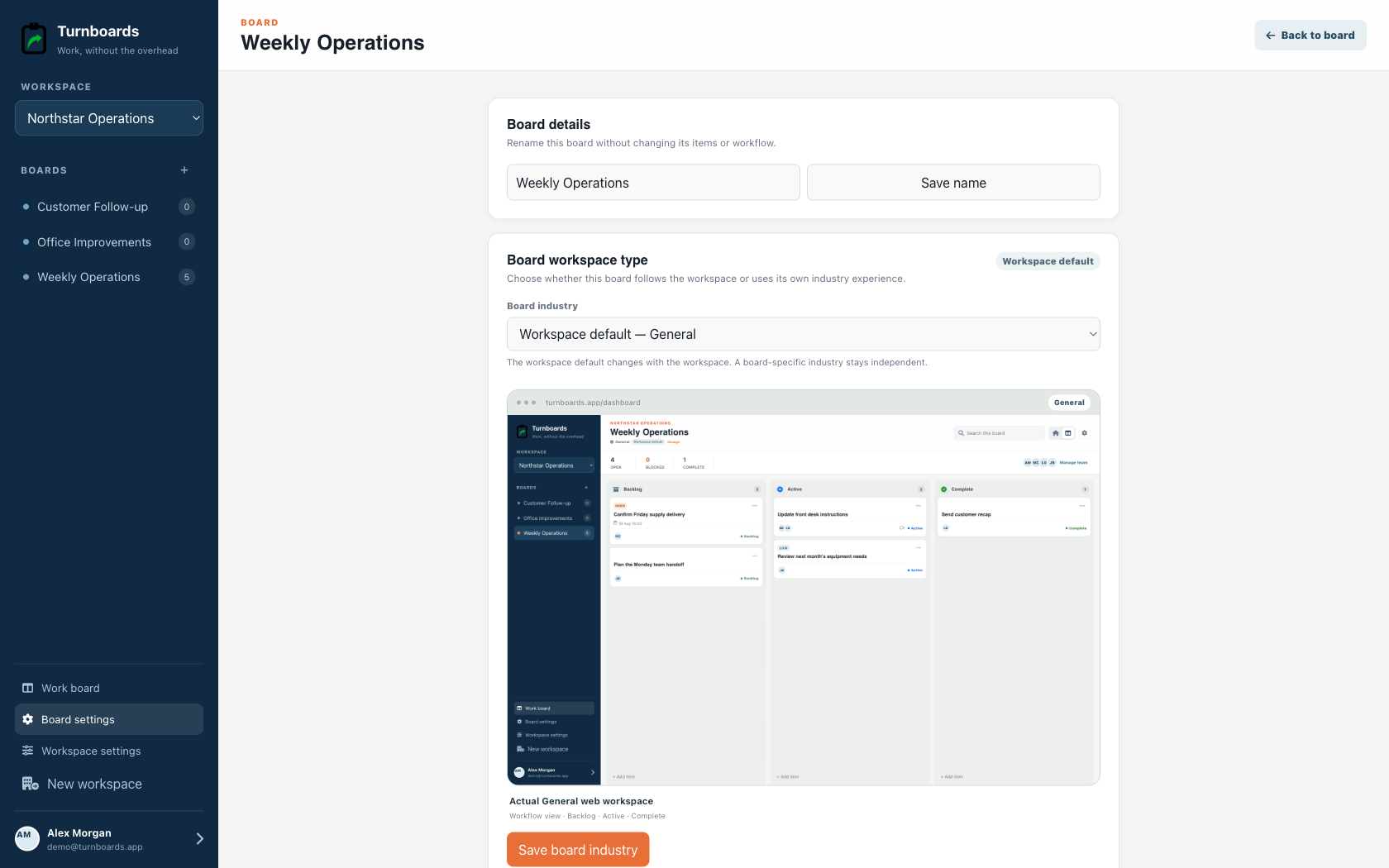
Create a board.
Use the plus button beside the boards list in the sidebar. The label may be Jobs, Projects or Work Lists in your chosen workflow.
Name it after the work.
Try “Oak Street repair,” “Customer follow-up” or “My day.” Select the board from the sidebar to open its work.
Adjust board settings.
Open Board settings to change the board name, assignments or workflow when your access allows it.
Find another board.
Use the browse and search button beside the boards list when you have more work to organize.
Part 3
Add work items fast.
Start with the next three things that need doing. A short, specific task is easier to assign and finish.
Open a board.
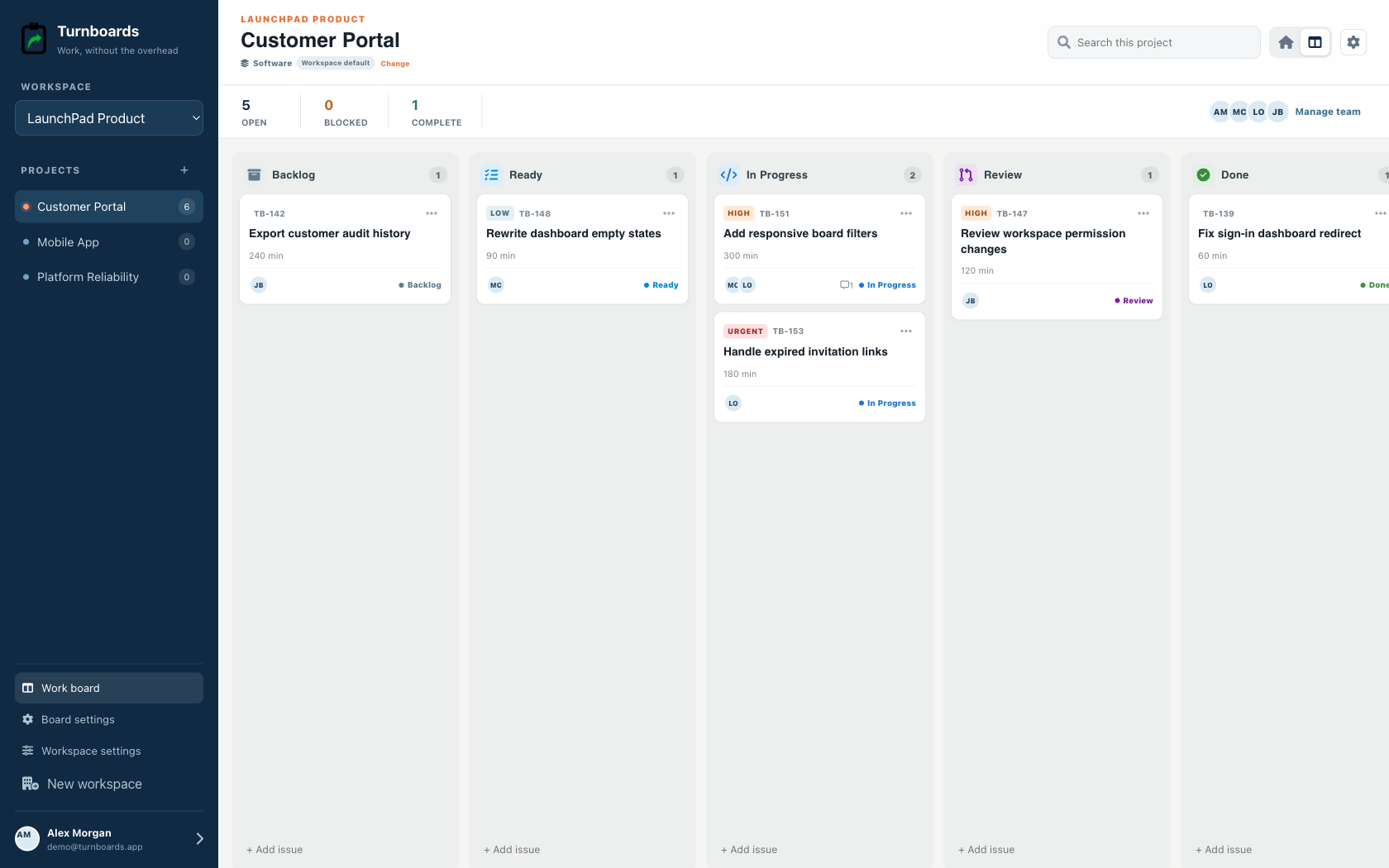
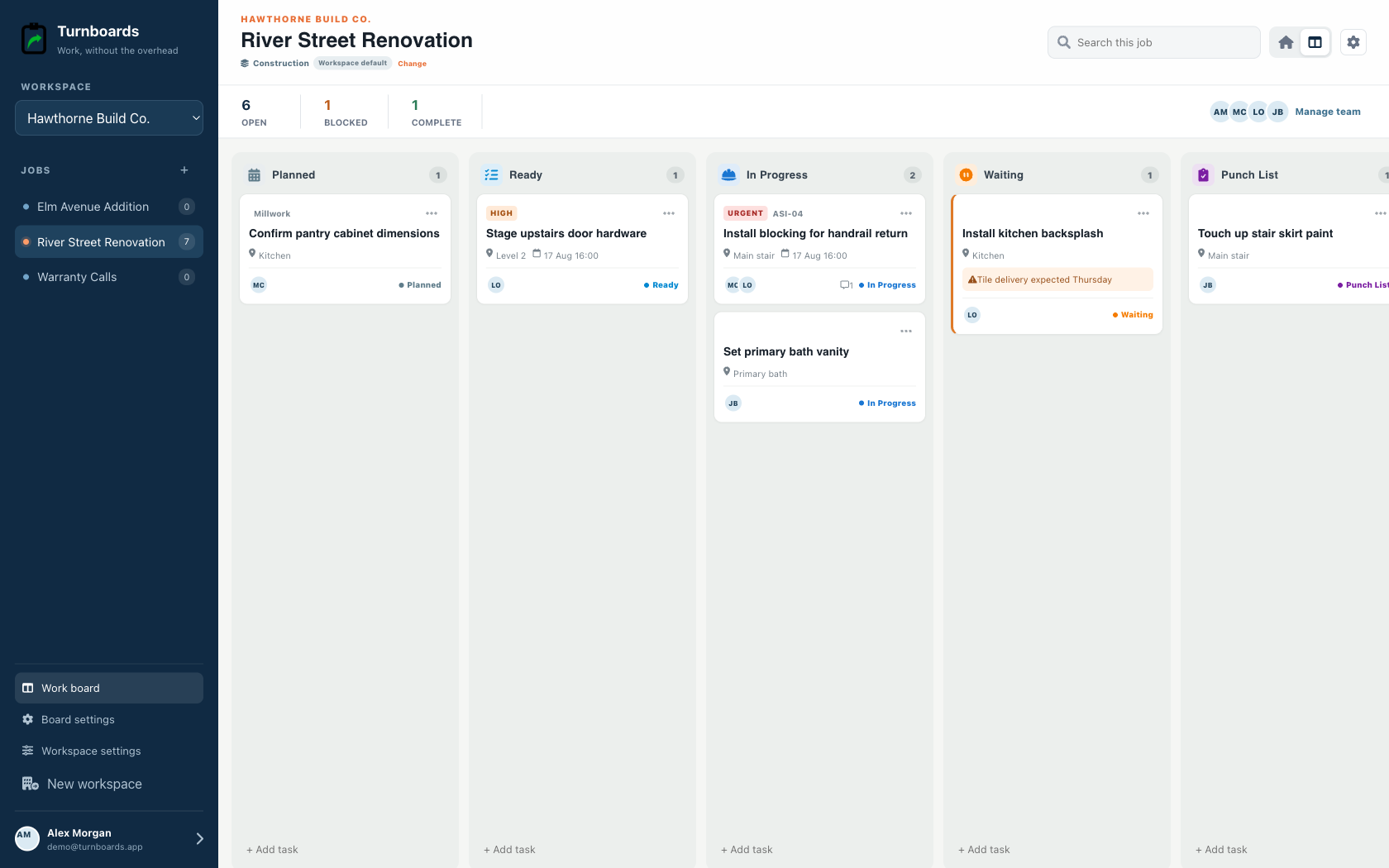
General boards start with Backlog, Active, and Complete. Industry boards use stages tailored to their workflow, such as Ready, In Progress, Waiting, Inspection, or Done.
Choose the right workflow stage.
In the shared workflow view, new items enter the visible stage. Industry home views send text-only captures to the configured intake stage.
Type the next action.
Use the visible task input. Type something concrete, such as “Confirm delivery date,” then press Enter.
Add optional details.
Open the task to add an owner, due date or useful note. Industry workflows offer extra fields where they are relevant.
Keep adding work.
The input clears after saving, ready for your next task.
Part 4
Move work through the day.
Every workflow keeps planned, active, blocked, and done work understandable while allowing terminology and stages to fit the team.
Keep future work in a not-started stage.
General uses Backlog; tailored workspaces may use Planned, Queue, Reported, Ideas, or another clear intake stage.
Move ready work forward.
Use the next active stage that reflects what is really happening, including a visible waiting or blocked stage when needed.
Mark finished work done.
Open the task and choose its stage. In the workflow board, you can also drag it to the appropriate column.
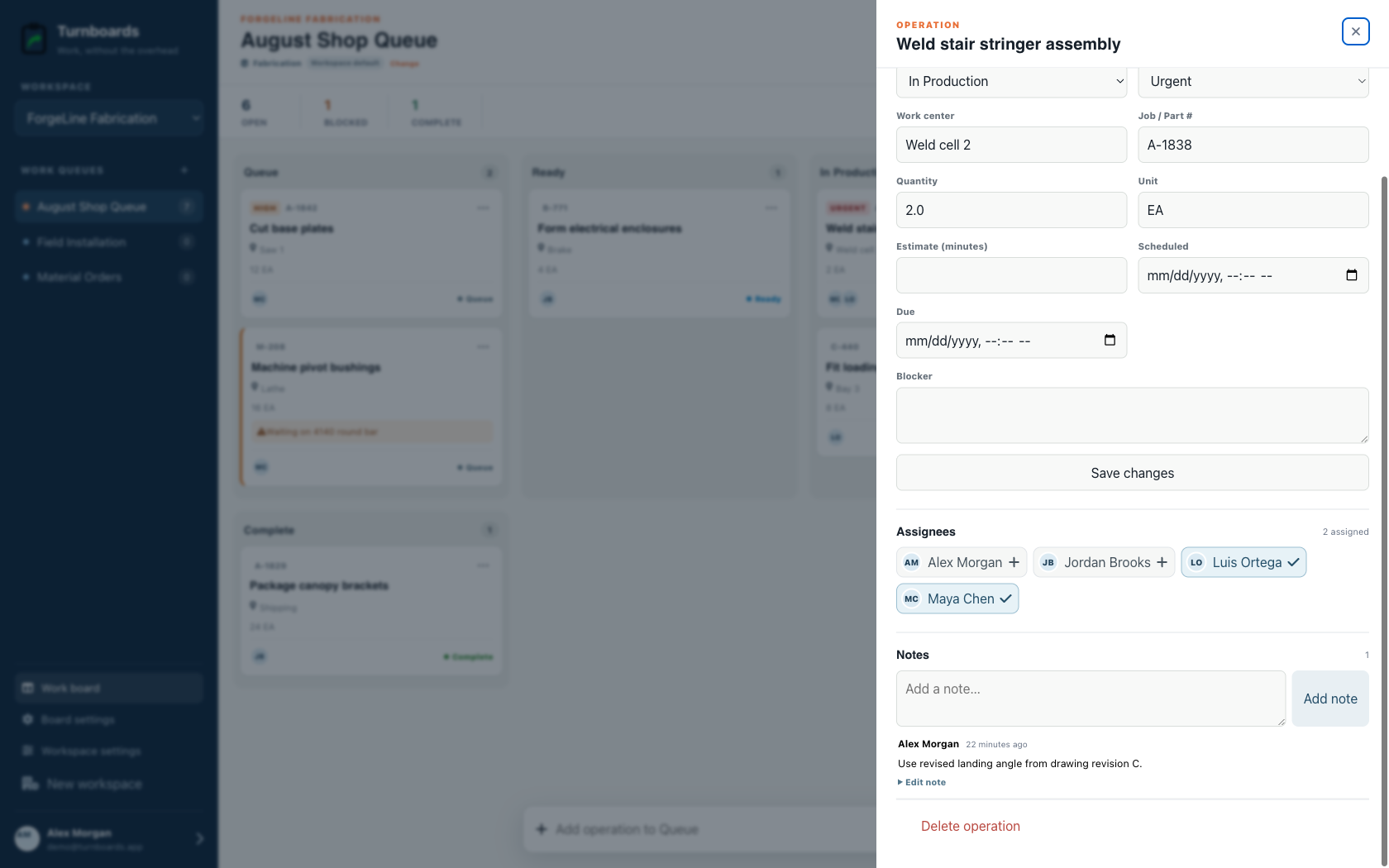
Open a task for the details.
Select a task to update its title, assignment, dates and notes without leaving your board.
Part 5
Assign people and add notes.
Use Turnboards on your own or share the work. Workspace administrators can open Workspace settings to invite teammates by email. Once they join, assign the boards and tasks they need.
Assign boards.
Assign people when creating or editing a board so they can focus on the projects that matter to them.
Assign individual items.
Open a task and choose its assigned members. People need to belong to your workspace first.
Filter to one person.
Use the board filters to focus on assigned work.
Add task notes.
Use notes for gate codes, measurements, customer details, status updates, follow-up thoughts, or anything that should stay attached to the task.
What the Work screen is best at
- Creating items one after another without leaving the page.
- Moving work through a clear General or industry-specific workflow with a tap.
- Keeping assignments visible without forcing every task into a heavy workflow.
- Saving useful notes where the work actually lives.
- Using the optional mobile app for offline work, then syncing supported changes when the connection returns.
After setup
Start with the next three things to finish.
Open your dashboard, choose a workspace and board, then spend the day adding items, moving work forward, checking assignments, and adding notes. Web and mobile stay on the same shared data.