Customers send incomplete job details.
How to Collect Customer Job Requirements Before Scheduling a Crew
A message saying “the kitchen needs fixing” is hard to schedule. Give customers one place to list each piece of work, its location, and the details your crew needs before the visit.
Turnboards connects a private customer request form to a review queue and, after your approval, to normal tasks on the right job board.
Create your workspace and start with one job.
Prefer the mobile app?


A practical example
Oak Street: turn a vague repair request into two clear tasks
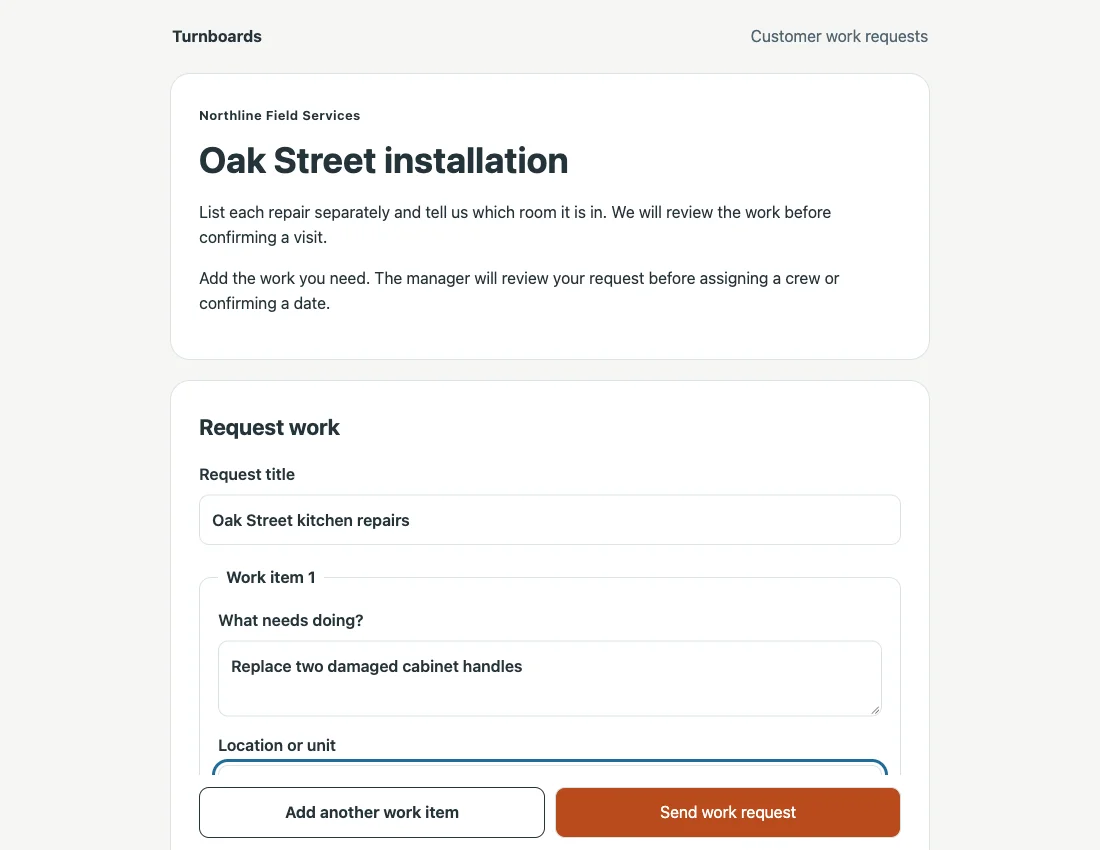
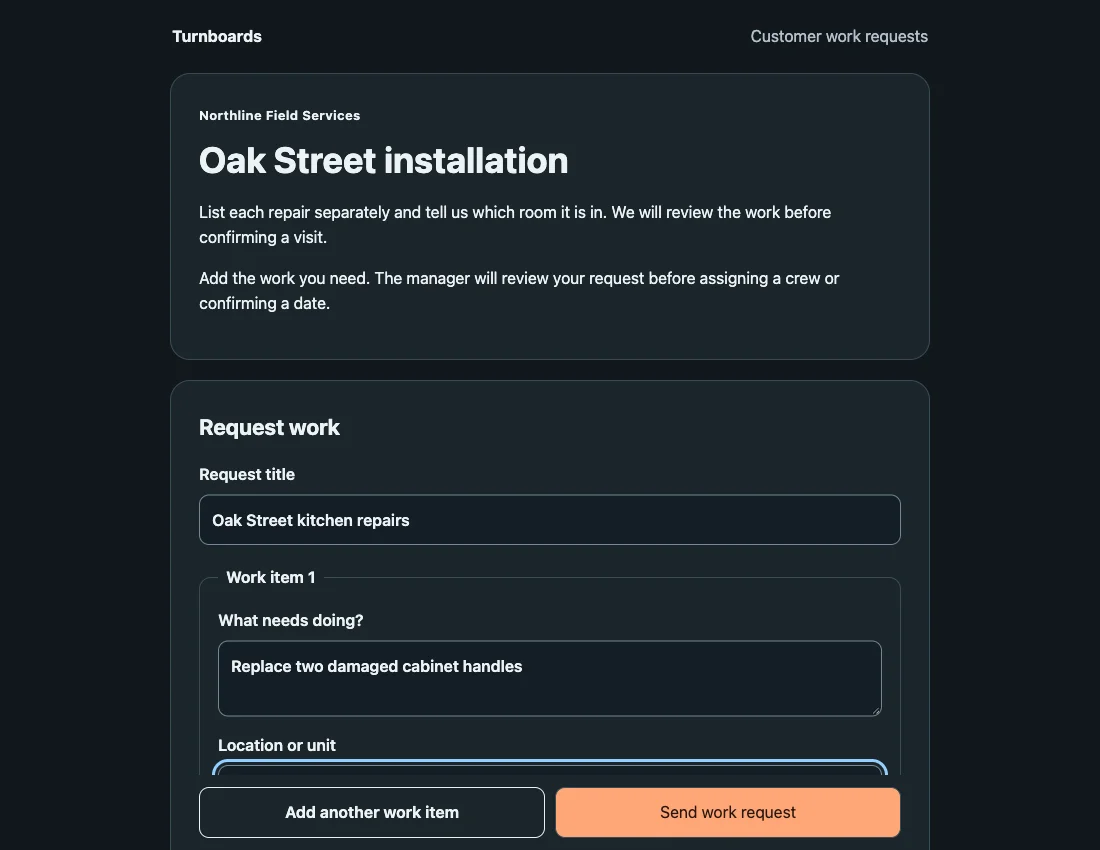
The customer needs cabinet handles replaced and a sticking kitchen door repaired. Collect the room and item notes before deciding who should go.
- Customer input
- Two separate work items, kitchen locations, access notes, and a preferred date.
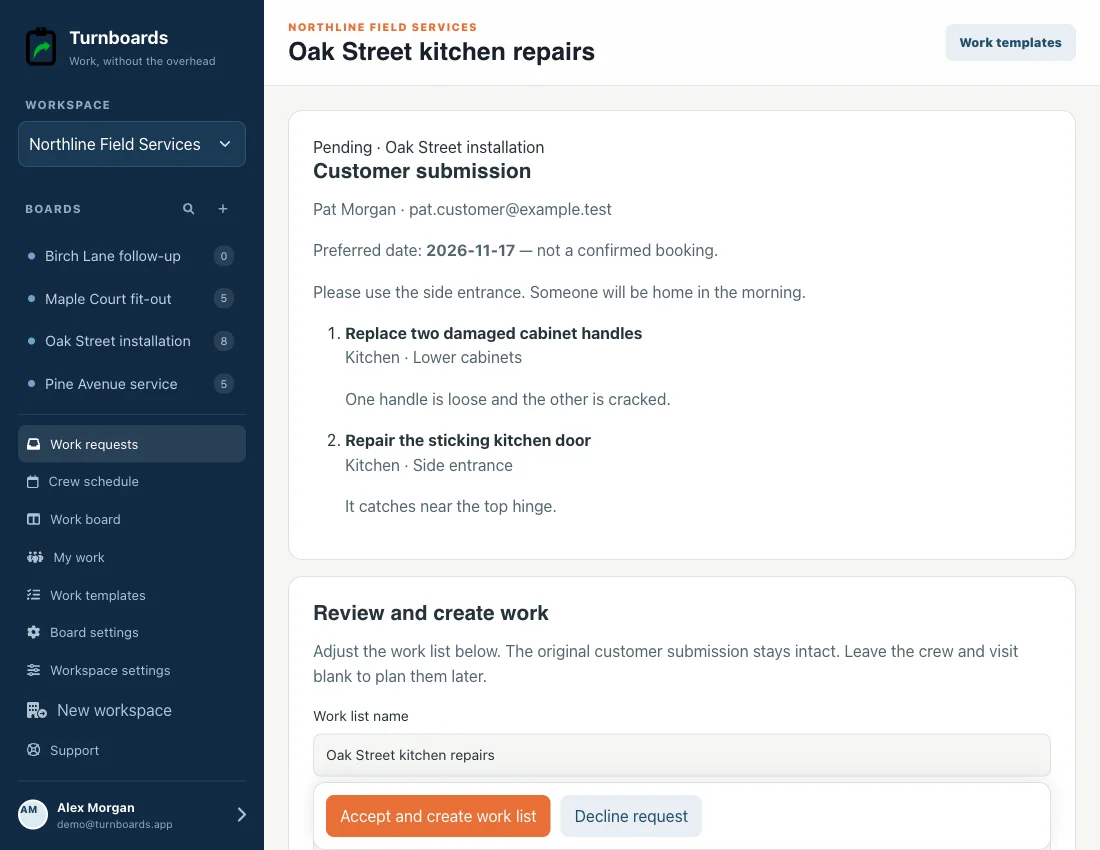
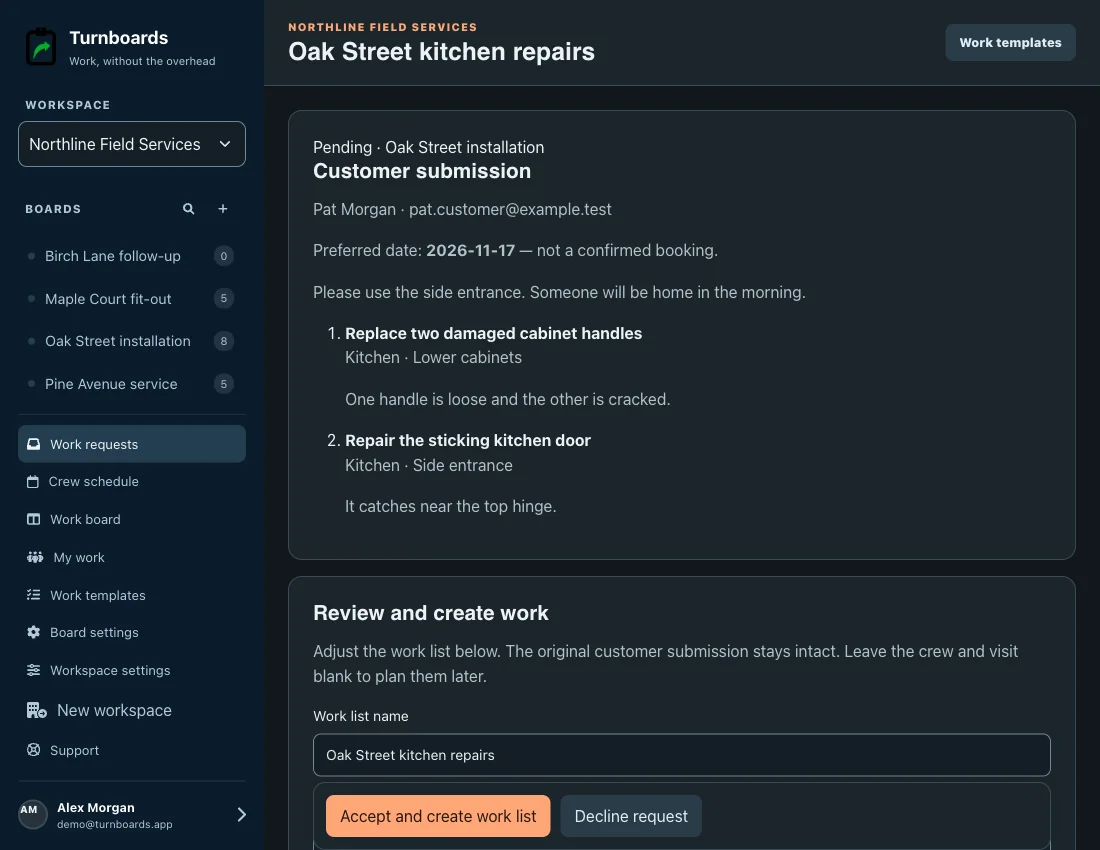
- Manager review
- Accept the items you can take on, edit their work-list wording, and keep the original submission.
- Crew handoff
- Create an Oak Street work list. Assign the Service crew and add a visit now, or plan them later.
Start with one job
Create your account and a job board. Open Work requests and create a separate customer link for that job.
Put it into practice
A workflow your team can follow
Send a private link for one job
Add the customer’s name, email, and instructions. Email the form through Turnboards or copy the link into your own message. Customers do not need an account.
Let the customer describe each piece of work
The fixed form collects ordered work items, item locations and notes, general notes, and an optional preferred date. Each recipient sees only submissions made through their own link.
Review before putting work on the board
Requests wait for an admin to accept or decline them. On acceptance, choose the tasks, optional unit, crew participants, and optional booking. Submission alone does not create crew tasks or book a visit.
What to expect
A preferred date is not a confirmed booking. Links last 30 days and can be revoked or replaced. The form does not include uploads or custom questions.
Questions before you start
Does the customer need an account?
No. You create an account to manage the job; the customer opens a limited, board-specific link without registration.
Can customers see my internal board?
No. They see the job name, customer instructions, their link’s submissions, review status, and any customer-visible decision note.
Will a request automatically go onto the board?
Only after an admin accepts it. Acceptance creates an independent work list with ordinary tasks on that link’s board. Assign a crew and schedule now or later.
Connect the next part of the job
Put the workflow to work
Make the next job easier to hand off.
Create your account and a job board. Open Work requests and create a separate customer link for that job.